In my previous post, I discussed how to use DOSBox to play 16 bit DOS games & run programs like turbo C/C++ IDE with the help of a front-end application D-Box. In this post, you would learn how to use DOSBox without any front-end application. Here you will have to write some commands if you are not comfortable then stick with DBox. DOSBox is an MS-Dos emulator which can help you to run Dos Based applications in Windows Vista, Win 7, macOS and Linux (and perhaps upcoming 128 bit Windows 8 :)
In this tutorial we will be using Turbo C++ IDE, you can follow the same procedure to run all other dos games & programs.
Note:
The DOSBox should run on Windows 10 as well. Though I haven't tested it. If you do, please let me know.
Follow These Steps to Use DOSBox
1) Create a directory and name it "DOSFOLDER" preferably in the root/c: or any other. This folder will be mounted as C: in DOSBox, you will learn later in this post.
2) Copy all DOS applications & games (eg dev) to this directory. For example, if you want to run Turbo C++ IDE, copy TC folder or extract from TC installer to this directory.
3) Download & Install the DOSBox for Windows 7/Vista & MacOS from the link provided at the end of the post. Linux users can use the package manager to download DOSbox from the repository.
4) Run DOSBox, go to start> all programs/programs> DOSBox0.74(or similar)> DOSBox
or from the desktop. The DOS Emulator will open. On the title bar, you can see the clock speed.
5) You are prompt to Z:\>
You need to mount the folder you had created in step 1, if you skipped it, do it now. Here you will store all the dos programs & games.
6) I am considering the path to folder/directory "DOSFOLDER" you recently created is C:\DOSFOLDER (for simplicity root directory was used)
write the following lines of codes in dos emulator:
Z:\> mount c c:\DOSFOLDER
you would get a message Drive C is mounted as local directory C:\DOSFOLDER. You can use any drive letter instead of C eg H, I, J, etc. Which is actually the virtual drive you have created in DOS emulator DOSBox. now type:
>C:
C:\>
If you remember or used DOS previously it's simple dos command. For example, if you have saved all the files & folders of Turbo C++ IDE ie folder "TC" inside folder "DOSFOLDER" then type
C:\> CD TC/BIN
C:\TC\BIN>TC
The TC.exe file is located in the Bin directory of TC. In the same way, you can locate the other dos programs and games. If you don't remember the names then us the dir command to list the files inside any directory. The above line will open Turbo C++ IDE.
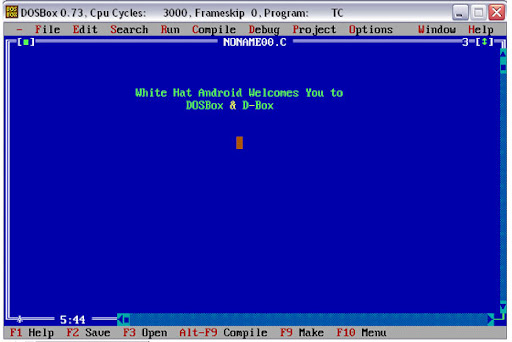
I think you are familiar with this code except for Mount command.
Configure DOSBox to Auto Mount & Auto Execute
1) If you want to save some time from typing these codes every time you start DOSBox.
Go to "C:\Program Files\DOSBox-0.74" where DOSBox is installed using windows explorer.
2) Now run a batch file "DOSBox 0.74 Options.bat" which is present in the folder. A "DOSBox-0.74.conf" file will open in notepad. Scroll to the bottom, you will find [autoexec].
Just below [autoexec] write the following lines of commands
>mount c c:\DOSFOLDER
>C:
And save the file. The above code will be automatically executed when you start DosBox. It will mount the folder DOSFOLDER and create a virtual drive. Now you can type the name of programs to run.
3) If you want to use only one program eg Turbo C/C++ IDE or DEV.
Then after [autoexec] write the following lines of commands
>mount C C:\DOSFOLDER
>C:
>CD TC/BIN
>TC
The above code will directly open Turbo C/C++ when you run DOSBox.
DBox to Use DOSBox Easily
If you are still uncomfortable with DOSBox. Then you will have to use some of the front applications available like
ProGammaX, Sir DOSalot, DosBoxFront, Dapplegrey, DOG, DOSShell, AmpSHell, Radnor, DOSBoxer, DOSBox Gui, DOSBox Game Launcher, Boxer, DOSBoxGui, DBoxFE
etc.
Above all my favorite is D-Box. You can read more on how to use D-Box to run DOS programs & games in Windows Vista, Windows 7, Linux And MacOS in our previous post click here.
Limitations of DOSBox
The only limitation with DOSBox is you can't use some keyboard shortcuts like ctrl+F9 to run c programs. Because ctrl+f9 is one of the shortcuts of DOSBox itself. Pressing Ctrl+F9 will exit from the DOSBox, be aware of that. Instead of it, you will have to manually click on options.
Download Free DOSBox
for Windows [link]
for macOS [link]
for Linux [Download from Linux repository]
for another OS visit official website [www.dosbox.com]
for macOS [link]
for Linux [Download from Linux repository]
for another OS visit official website [www.dosbox.com]
At any point, if you find any difficulty to use DOS Box you can use the comment section below to post your questions.
If you have tried it successfully, then share your experience.
Shekhar Sahu
Hand-Picked Related Posts
Use DBox & DosBox to Run Dos Programs & Games in Windows 7, Windows Vista in Full Screen


4 comments for this post
Thank you Shekhar!
I was really looking to Full Screen Turbo C++ in my laptop. Now I got it
Singh
hello sir
my friend need basic commands of dos
if u have then plz send him
hitesh221991@gmail.com
thank u
www.hurray1.com
Singh
hello sir
my friend need basic commands of dos
if u have then plz send him
hitesh221991@gmail.com
thank u
www.hurray1.com
Thank you Shekhar!
I was really looking to Full Screen Turbo C++ in my laptop. Now I got it